Home Screen Overview
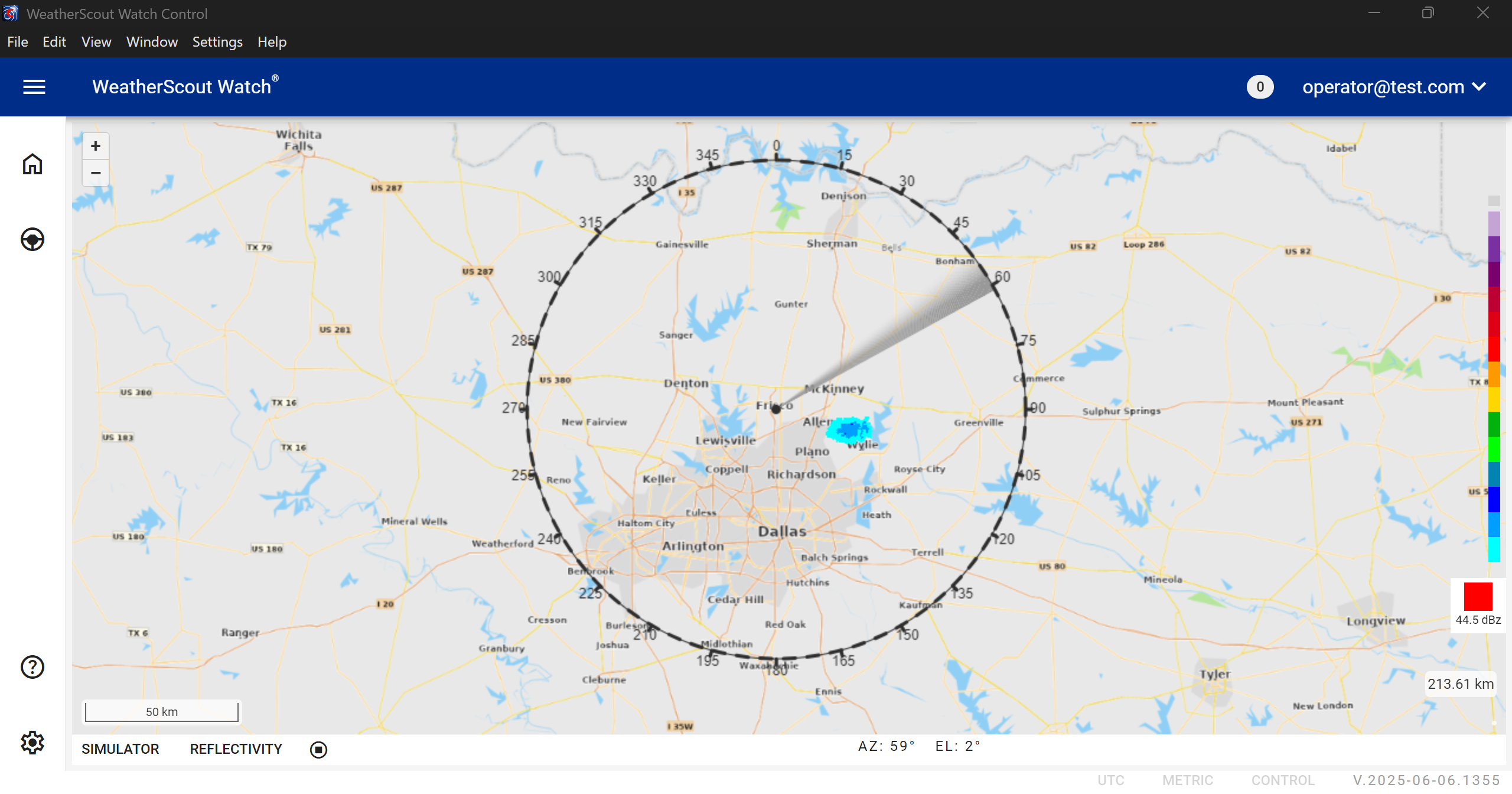
The Home Screen this is where the majority of radar visual data will be displayed. The home screen is divided into four key sections. The header, main menu, and the footer.
Header Section

The header section of the program's home screen provides users with essential functionalities for navigation, user interaction, and program management. Here's a detailed description of the components within the Header:
-
Main Menu Button
The menu button is a convenient feature that allows users to collapse or expand the main menu, providing flexibility in screen utilization. When clicked, it condenses the main menu, maximizing the space for the primary content. This button offers users the freedom to tailor their interface, enhancing their overall user experience.
-
Program Name
The program name is prominently displayed in the header, serving as a clear identifier of the application.
-
Alerts
The header features a dedicated section displaying the number of alerts you have, ensuring you stay informed in real-time. When you click on the alerts indicator, a seamless and user-friendly popup menu instantly appears, presenting a detailed list of your alerts.
-
Current Logged-In User
A section in the header now displays the current logged-in user's username. When clicked, a dropdown menu appears offering quick access to the following options:
-
Profile
Users can manage their personal information and update their password via the Profiles Page. -
Logout
Ends the current session and redirects the user to the Login Screen for security and account protection.
-
Main Menu

The main menu serves as the central hub of the program, providing quick and easy access to essential features. It is thoughtfully designed to enhance user experience and streamline navigation. Here's a breakdown of the main menu options:
-
Home Button
The home button is your direct gateway to the program's primary interface. By clicking on the Home button, users are swiftly brought back to the main screen, allowing for effortless navigation between different sections and tasks.
-
Radar Control
The Radar Control section allows users to access the radar system and modify or edit radar properties. This includes managing radar configuration, viewing operational data, and making real-time adjustments to ensure optimal performance. It serves as a central location for interacting directly with the radar hardware and software components.
-
Documentation
Click the ? icon to be directed to our comprehensive documentation page. Here, you can find detailed guides, tutorials, and FAQs to enhance your understanding of our services and features.
-
Settings Menu
The settings menu is a crucial component, empowering users to personalize their experience within the program. Within this menu, users can adjust various preferences and configure other options to align the program with their individual requirements. It offers a user-friendly interface, ensuring users can easily modify settings according to their preferences. The settings menu is usually reserved for the system administrators.
Footer

The footer of the program's home screen provides users with essential information and functionalities for seamless navigation and system monitoring. Here's a detailed description of the components within the Footer:
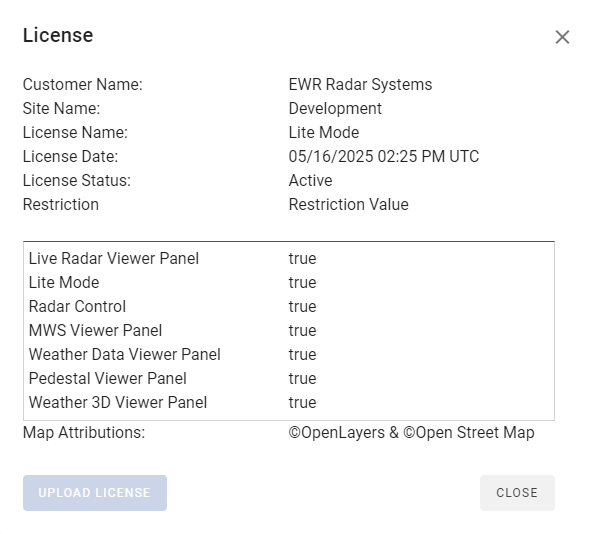
Version Number
The version number prominently displayed in the Footer indicates the current version of the program. This information is pivotal for users and administrators as it allows them to track the software's version. Staying up-to-date with the latest version ensures users have access to new features, security enhancements, and bug fixes, promoting optimal performance and security. When clicked the view license pop up box will appear offering users the ability to access and review the program's licensing information and upload a copy of the license. By clicking this button, users can view details about their current license, including license name, license date, license status, customer name, site location, and any associated usage limitations. This feature promotes transparency enabling users to stay informed about their software license status.