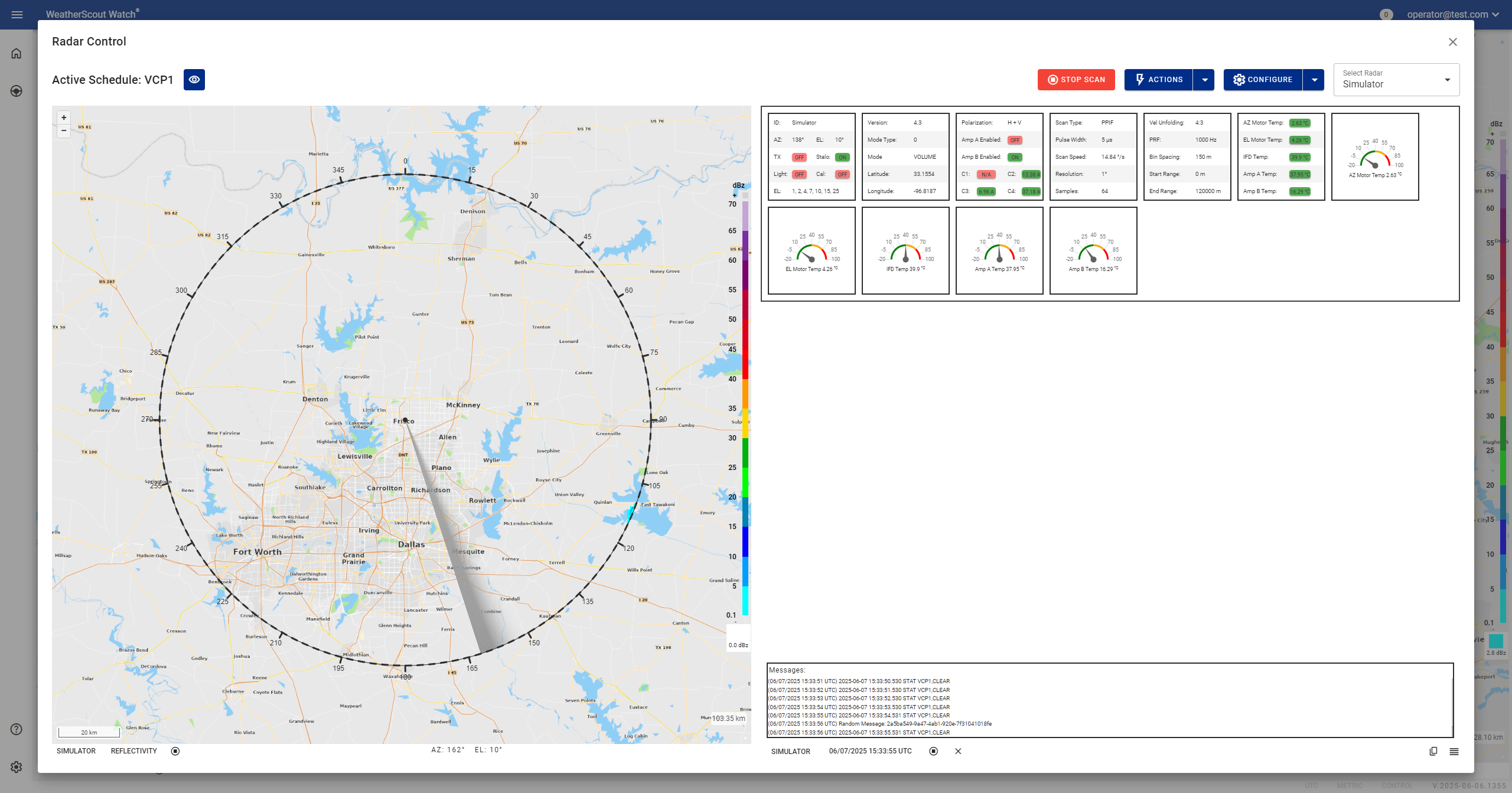
Radar Control Screen Overview
The Radar Control Screen is the primary interface for operating and configuring radar system parameters. It provides operators with both control and configuration options to manage radar behavior, diagnostics, and scheduling.
Active Radar Schedule
The Active Schedule section displays the currently loaded and upcoming radar scan tasks. This provides operators with a clear view of what the radar is scheduled to do, when, and in what order.
Each entry in the schedule includes the following fields:
-
Scan Task Name
The name of the radar scan task, corresponding to a configured scanning routine. -
Start Time
The scheduled time at which the scan task is set to begin. -
Stop Time
The scheduled time at which the scan task will end. -
Skip Time
A designated period during which the task should be skipped, if applicable. -
Priority
A numeric or descriptive value indicating the priority level of the task relative to others. -
View Task Button
A button that opens a detailed view of the selected scan task, including its configuration parameters and operational details.
This section helps ensure operators are aware of the radar’s operational timeline and can quickly assess or adjust tasks as needed.
Live Radar
The Live Radar section provides a real-time display of weather radar data. This view is essential for monitoring atmospheric conditions as they are detected and processed by the radar system.
Key features of the Live Radar section include:
-
Real-Time Data Display
Continuously shows the latest radar scans, including precipitation patterns, intensity, and coverage based on the active scan task. -
Scan Progress Indicator
Visual representation of the radar's current scanning activity, showing azimuth or elevation coverage as it updates. -
Moment Selection
Allows operators to toggle between different radar moments such as reflectivity (Z), velocity (V), and spectrum width (W), providing insight into precipitation type, motion, and turbulence. -
Data Overlays
Optional overlays for additional context, such as range rings, elevation angles, or melting layer indicators.
This section helps operators maintain situational awareness of evolving weather conditions and ensures the radar is functioning as expected during active scans.
Actions Menu
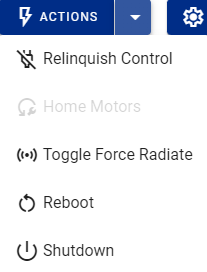
The Actions menu provides direct controls to manage radar operations in real time.
-
Relinquish Control
Releases the current user's control of the radar system, making it available for others to access. -
Toggle Force Radiate
Forces the radar to begin or stop transmitting signals, regardless of current schedule or scan state. -
Reboot
Restarts the radar system software and subsystems. This does not power down hardware but may temporarily interrupt operations. -
Shut Down
Powers down the radar system completely, including hardware components. Use with caution.
Configure Menu
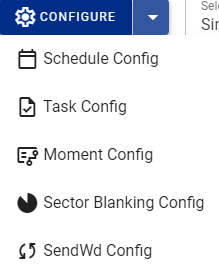
The Configure menu allows detailed customization of the radar’s operational parameters.
-
Schedule Configuration
Define and manage time-based scheduling for radar operation tasks. -
Task Configuration
Set up and modify scanning tasks, including scan patterns, intervals, and modes. -
Moment Config
Enable or disable different radar moments (e.g., reflectivity, velocity, spectrum width) and set processing parameters. -
Sector Blanking Config
Define azimuthal sectors where the radar will intentionally disable transmission or reception. -
SendWd Config
The SendWd Config option in the Radar Control Configure menu is used to send or copy configuration data to a selected destination. This action ensures that the appropriate configuration files are deployed to the radar system or associated components. This function does not modify any settings; it simply transfers existing configuration data to where it is needed, maintaining consistency across the system.